| Tenouk C & C++ | MFC Home | C++, MFC, Winsock & WinInet 3 | C++, MFC, Winsock & WinInet 5 | Download | Site Index |
C++, MFC, Winsock and WinInet Part 4
Program examples compiled using Visual C++ 6.0 compiler on Windows XP Pro machine with Service Pack 2 and some Figure screen snapshots have been taken on Windows 2000 server. Topics and sub topics for this tutorial are listed below. Don’t forget to read Tenouk’s small disclaimer. Supplementary item is WEBSITE.
-
Building MYEX33A From Scratch - Continue...
|
|
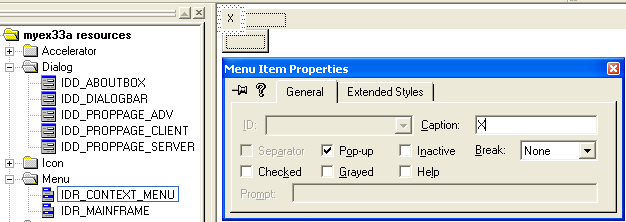
Add the following context menu. Follow the shown steps.
Figure 36: The X main menu property page.
Figure 37: The ID_EDIT_CLEAR_ALL property. |
||||||||

Add the following menu and their items. Follow the shown steps.
|
ID |
Caption |
Prompt |
|
- |
Internet |
- |
|
ID_INTERNET_START_SERVER |
Start Server |
Start the server thread |
|
ID_INTERNET_STOP_SERVER |
Stop Server |
Stop the server thread |
|
ID_INTERNET_REQUEST_SOCK |
Request (Winsock) |
Client request using Winsock functions |
|
ID_INTERNET_REQUEST_INET |
Request (WinInet) |
Client request using WinInet functions |
|
ID_INTERNET_CONFIGURATION |
Configuration |
Set home directory, server etc. for client |
|
Table 21. |
||

Figure 38: The Internet menu property.

Figure 39: The Start Server menu property.

Figure 40: The Stop Server menu property.

Figure 41: The Request (Winsock) menu property.

Figure 42: The Request (WinInet) menu property.

Figure 43: The Configuration menu property.
In ResourceView, select the IDD_PROPPAGE_ADV dialog, then, launch ClassWizard. The Adding a Class prompt dialog will be displayed. Select Create a new class radio button and click OK. Add the following classes and all are using the same Sheetconfig.h and Sheetconfig.cpp header and source files respectively.
|
ID |
Class name |
Base class |
|
IDD_PROPPAGE_ADV |
CPageAdv |
CPropertyPage |
|
IDD_PROPPAGE_SERVER |
CPageServer |
CPropertyPage |
|
IDD_PROPPAGE_CLIENT |
CPageClient |
CPropertyPage |
|
- |
CSheetConfig |
CPropertySheet |
|
Table 22. |
||

Figure 44: Adding new class dialog prompt.
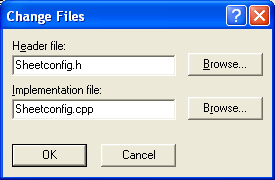
Figure 45: Entering the header and source file names for the classes.
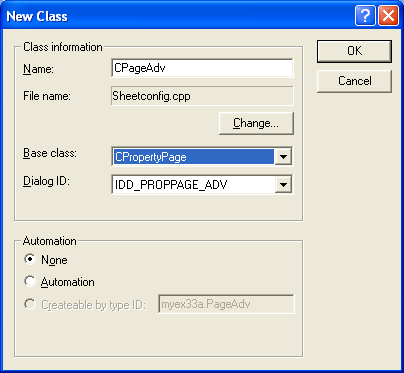
Figure 46: The CPageAdv class information.
Add other classes in the same Sheetconfig.h and Sheetconfig.cpp files.

Figure 47: Adding new class through ClassWizard.

Figure 48: The CPageClient class information.

Figure 49: The CPageServer class information.
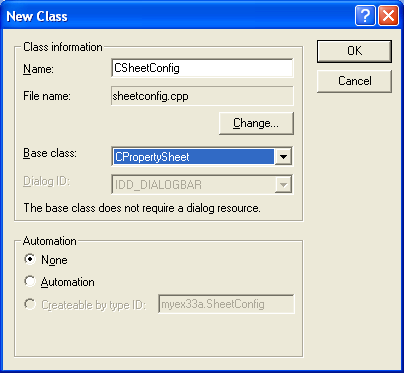
Figure 50: The CSheetConfig class information.
Add member variable to CPageAdv class. In the ClassWizard, click the Member Variables page and click the Add Variable button. Add the following variables. Follow the shown steps.
|
ID |
Variable name |
Type |
|
IDC_IPCLIENT |
m_strIPClient |
CString |
|
IDC_IPSERVER |
m_strIPServer |
CString |
|
Table 23. |
||
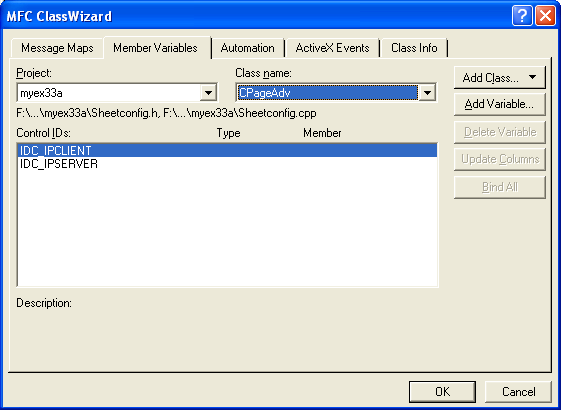
Figure 51: Adding member variables.
|
Figure 52: Adding m_strIPServer variable. |
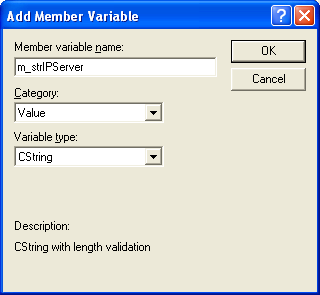
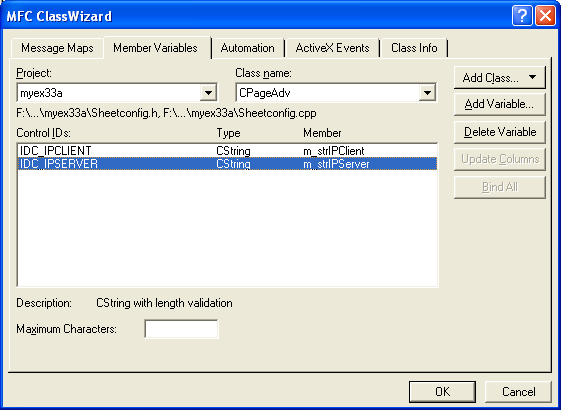
Figure 53: The added variables.
By following the previous steps, add member variable to CPageClient class. Don’t forget to save the previous member variables addition by clicking the Yes button as shown below.
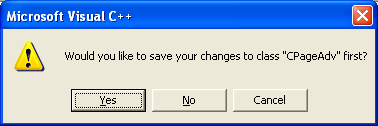
Figure 54: Save changes dialog prompt.
Add the following variables to CPageClient class. Follow the shown steps.
|
ID |
Variable name |
Type |
|
IDC_FILE |
m_strFile |
CString |
|
IDC_IPADDR |
m_strServerIP |
CString |
|
IDC_PORT |
m_nPort |
UINT |
|
IDC_PROXY |
m_strProxy |
CString |
|
IDC_SERVER |
m_strServerName |
CString |
|
IDC_USEPROXY |
m_bUseProxy |
BOOL |
|
Table 24. |
||

Figure 55: The added CPageClient member variables.
Select CPageServer class in the Class Name field, add the following member variables.
|
ID |
Variable name |
Type |
|
IDC_DEFAULT |
m_strDefault |
CString |
|
IDC_DIRECT |
m_strDirect |
CString |
|
IDC_PORTSERVER |
m_nPortServer |
UINT |
|
Table 25. |
||
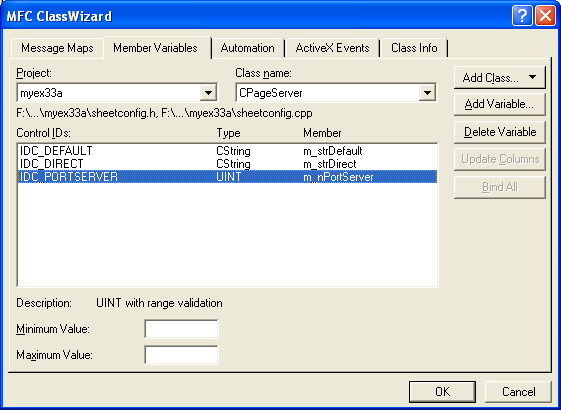
Figure 56: The added CPageServer member variables.
Using ClassView, add the following public member variables to CSheetConfig class.
public:
CPageAdv m_pageAdv;
CPageClient m_pageClient;
CPageServer m_pageServer;
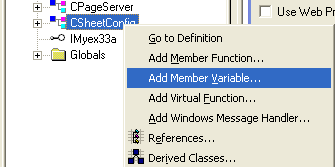
Figure 57: Adding member variables through ClassView.
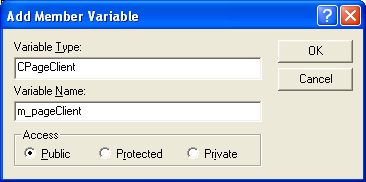
Figure 58: Adding m_pageClient variable.
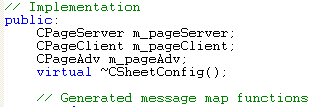
Listing 2.
Using ClassView add the following generic class.
|
Class name |
Base class |
|
CSockAddr |
sockaddr_in |
|
CBlockingSocket |
CObject |
|
CBlockingSocketException |
CException |
|
CHttpBlockingSocket |
CBlockingSocket |
|
Table 26. |
|
Don’t forget to use the same header and source Blocksock.h and Blocksock.cpp files respectively for all the generic classes. Follow the shown steps.
-------------------------------------------------------
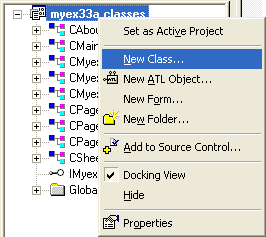
Figure 59: Adding new class through ClassView.

Figure 60: Modifying the header and source file names.
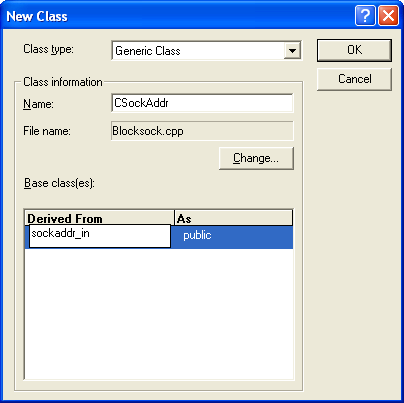
Figure 61: The CSockAddr class information.

Figure 62: The dialog prompt for non-existence file. Just click OK.
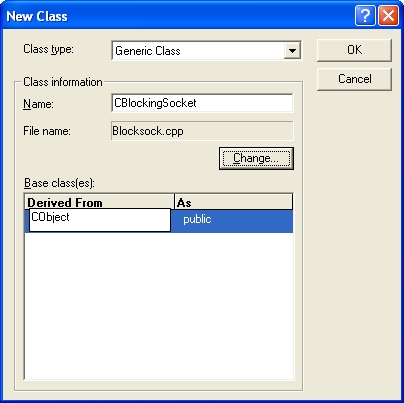
Figure 63: The CBlockingSocket class information.

Figure 64: The CBlockingSocketException class information.
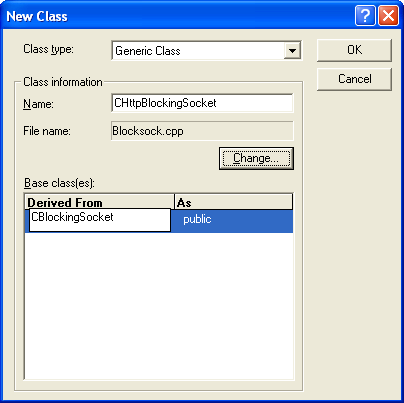
Figure 65: The CHttpBlockingSocket class information.
Add another generic CCallbackInternetSession class using Utility.h and Utility.cpp as the header and source files respectively.
|
Class name |
Base class |
|
CCallbackInternetSession |
CInternetSession |
|
Table 27. |
|
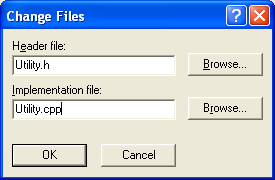
Figure 66: Modifying the header and source file names for new class.

Figure 67: The CCallbackInternetSession class information.

Figure 68: Dialog prompt for the non-existence file, just click the OK.
Continue on next Module...
Further reading and digging:
-
Win32 process, thread and synchronization story can be found starting from Module R.
-
DCOM at MSDN.
-
COM+ at MSDN.
-
COM at MSDN.
-
Unicode and Multi-byte character set: Story and program examples.