| Tenouk C & C++ | MFC Home | Automation 9 | Automation 11 | Download | Site Index |
Automation 10
|
|
Program examples compiled using Visual C++ 6.0 compiler on Windows XP Pro machine with Service Pack 2. The Excel version is Excel 2003/Office 11. Topics and sub topics for this tutorial are listed below. Don’t forget to read Tenouk’s small disclaimer. The supplementary notes for this tutorial are automation, variant and COlevariant class.
The Coding Part
Add the automation support manually. Add the following code in StdAfx.h.
Listing 1.
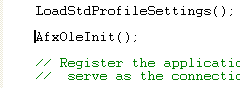
Then add this call at the beginning of the application's InitInstance() function in mymfc29D.cpp.
Listing 2.
|

Add classes from Excel type library. Again, add classes from Excel’s type library.

Figure 46: Adding new classes from type library.
For Tenouk’s Office 2003 English version (Office 11) the OLB/TLB file is excel.exe. From the previous steps, we can see that the type library file extensions may be .TLB, .OLB, .DLL or .EXE.
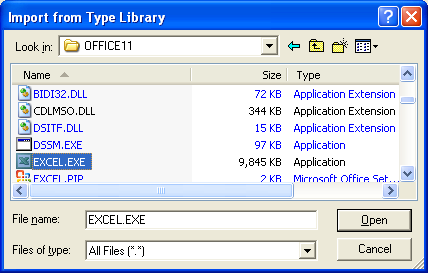
Figure 47: Selecting the Excel type library file. Take note that it is Excel executable file.
Some Notes
Once you have added the classes from a type library
to your project, you will notice that many classes have been added to the project.
In ClassView, you can double-click a class to see the member functions of that
class and then double-click the member function to view the definition of that
function in the Excel.cpp implementation file.
You need to go to the definition of a member function if you wish to verify
a return type or if you need to change a function's implementation. Any time
you change a function definition, remember to change the declaration in the
Excel8.h file. When doing so, be
sure that you change the correct function declaration; sometimes, the same name
is given to member functions of multiple classes,
GetApplication()
is one such example.
Although the steps above illustrate how to automate Microsoft Excel, you can
apply the same ideas to automating other applications. The list below contains
the file names for the type libraries of the Microsoft Office applications:
|
Application |
Type Library |
|
Microsoft Access 97 |
Msacc8.olb |
|
Microsoft Jet Database 3.5 |
DAO350.dll |
|
Microsoft Binder 97 |
Msbdr8.olb |
|
Microsoft Excel 97 |
Excel8.olb |
|
Microsoft Graph 97 |
Graph8.olb |
|
Microsoft Office 97 |
Mso97.dll |
|
Microsoft Outlook 97 |
Msoutl97.olb |
|
Microsoft PowerPoint 97 |
Msppt8.olb |
|
Microsoft Word 97 |
Msword8.olb |
|
|
|
|
Microsoft Access 2000 |
Msacc9.olb |
|
Microsoft Jet Database 3.51 |
DAO360.dll |
|
Microsoft Binder 2000 |
Msbdr9.olb |
|
Microsoft Excel 2000 |
Excel9.olb |
|
Microsoft Graph 2000 |
Graph9.olb |
|
Microsoft Office 2000 |
Mso9.dll |
|
Microsoft Outlook 2000 |
Msoutl9.olb |
|
Microsoft PowerPoint 2000 |
Msppt9.olb |
|
Microsoft Word 2000 |
Msword9.olb |
|
|
|
|
Microsoft Access 2002 |
Msacc.olb |
|
Microsoft Excel 2002 |
Excel.exe |
|
Microsoft Graph 2002 |
Graph.exe |
|
Microsoft Office 2002 |
MSO.dll |
|
Microsoft Outlook 2002 |
MSOutl.olb |
|
Microsoft PowerPoint 2002 |
MSPpt.olb |
|
Microsoft Word 2002 |
MSWord.olb |
|
|
|
|
Microsoft Office Access 2003 |
Msacc.olb |
|
Microsoft Office Excel 2003 |
Excel.exe |
|
Microsoft Graph 2003 |
Graph.exe |
|
Microsoft Office 2003 |
MSO.dll |
|
Microsoft Office Outlook 2003 |
MSOutl.olb |
|
Microsoft Office PowerPoint 2003 |
MSPpt.olb |
|
Microsoft Office Word 2003 |
MSWord.olb |
|
Table 8. |
|
The default location for these type libraries is C:\Program Files\Microsoft Office\Office for Office 2002 the path is C:\...\Office10 and for Office 2003 the path is C:\...\Office11, except for Dao350.dll or Dao360.dll, and Microsoft Office 10(MSO.dll). The default location for Dao350.dll/Dao360.dll is C:\Program Files\Common Files\Microsoft Shared\Dao. The default location for MSO.dll is C:\Program Files\Common Files\Microsoft Shared\Office10 for Office 2002 and C:\Program Files\Common Files\Microsoft Shared\Office11 for Office 2003.
Select the following classes by holding down the Ctrl button while selecting the classes with your mouse click. It seems that different versions having slightly different class names and similar class name may have different functionalities for different versions.
|
Class |
|
_Application |
|
_Workbook |
|
Workbooks |
|
_Worksheet |
|
Worksheets |
|
Range |
|
Table 9. |

Figure 48: Selecting classes from Excel 2003 type library.

Figure 49: The added header and source files seen through FileView.

Figure 50: The added classes seen through ClassView.
Next, Using ClassWizard, add the menu commands and update command UI events as listed in the following Table to the CMymfc29DView class for all the menu items created previously.
|
ID |
|
ID_BANKOLE_LOAD |
|
ID_BANKOLE_TEST |
|
ID_BANKOLE_UNLOAD |
|
ID_DLLOLE_LOAD |
|
ID_DLLOLE_GETDATA |
|
ID_DLLOLE_UNLOAD |
|
ID_CLOCKOLE_LOAD |
|
ID_CLOCKOLE_CREATEALARM |
|
ID_CLOCKOLE_REFRESHTIME |
|
ID_CLOCKOLE_UNLOAD |
|
ID_EXCELOLE_LOAD |
|
Table 10. |

Figure 51: Adding Commands and Update Commands to CMymfc29DView class.
Add the following #include statements in mymfc29DView.h.
#include "autodriver.h"
#include "bankdriver.h"
#include "clockdriver.h"
#include "excel.h"
#include "AlarmDialog.h"
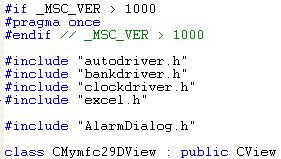
Listing 3.
Then, add the following member variables also in the mymfc29Dview.h.
private:
IAlarm m_alarm;
IMymfc29BAuto m_auto;
IBank m_bank;
IMymfc29C m_clock;
_Application m_app;
Range m_range[5];
_Worksheet m_worksheet;
Workbooks m_workbooks;
Worksheets m_worksheets;

Listing 4.
Add/edit code for CMymfc29DView::OnDraw() member function in mymfc29DView.cpp.
void CMymfc29DView::OnDraw(CDC* pDC)
{
CMymfc29DDoc* pDoc = GetDocument();
ASSERT_VALID(pDoc);
pDC->TextOut(100, 0, "--COleDispatchDriver usage--");
pDC->TextOut(10, 25, "Run this program from the debugger to see test output.");
pDC->TextOut(10, 50, "The MYMFC29A, MYMFC29B and MYMFC29C components...");
pDC->TextOut(10, 75, "...must be built and registered prior to loading this crap...");
pDC->TextOut(10, 100, "Originally for VC++ 6 + Excel 97 but here VC++ 6 + Excel 2003...");
}
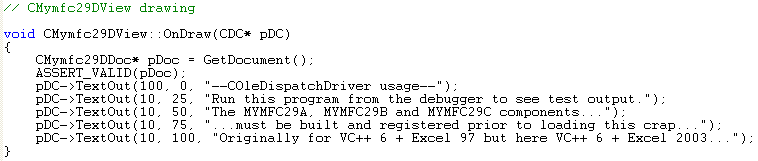
Listing 5.
Finally, add codes for the commands and update command UI events of the CMymfc29DView class.
void CMymfc29DView::OnBankoleLoad()
{
// TODO: Add your command handler code here
if(!m_bank.CreateDispatch("mymfc29A.Bank"))
{
AfxMessageBox("mymfc29A.Bank component not found");
return;
}
else
AfxMessageBox("mymfc29A.Bank component found lol!");
/* works for an EXE component only if the interface is registered
and the IID IID_IBank must match with your mymfc29A project.
You can find this IID number by checking the MYMFC29A ODL file...
// {923011E3-CBEB-11CE-B337-88EA36DE9E4E}
static const IID IID_IBank =
{ 0x923011e3, 0xcbeb, 0x11ce, { 0xb3, 0x37, 0x88, 0xea,
0x36, 0xde, 0x9e, 0x4e } };
LPDISPATCH p;
HRESULT hr = m_bank.m_lpDispatch->QueryInterface(IID_IBank, (void**) &p);
TRACE("OnBankoleLoad -- QueryInterface result = %x\n", hr);
*/
}
void CMymfc29DView::OnUpdateBankoleLoad(CCmdUI* pCmdUI)
{
// TODO: Add your command update UI handler code here
pCmdUI->Enable(m_bank.m_lpDispatch == NULL);
}
--------------------------------------------------------------------------------------------------------------------------

Listing 6.
void CMymfc29DView::OnBankoleTest()
{
// TODO: Add your command handler code here
m_bank.Deposit(20.0);
m_bank.Withdrawal(15.0);
TRACE("new balance = %f\n", m_bank.GetBalance());
}
void CMymfc29DView::OnUpdateBankoleTest(CCmdUI* pCmdUI)
{
// TODO: Add your command update UI handler code here
pCmdUI->Enable(m_bank.m_lpDispatch != NULL);
}
void CMymfc29DView::OnBankoleUnload()
{
// TODO: Add your command handler code here
m_bank.ReleaseDispatch();
}
void CMymfc29DView::OnUpdateBankoleUnload(CCmdUI* pCmdUI)
{
// TODO: Add your command update UI handler code here
pCmdUI->Enable(m_bank.m_lpDispatch != NULL);
}

Listing 7.
void CMymfc29DView::OnClockoleCreatealarm()
{
// TODO: Add your command handler code here
CAlarmDialog dlg;
if (dlg.DoModal() == IDOK)
{
COleDateTime dt(2005, 12, 23, dlg.m_nHours, dlg.m_nMinutes, dlg.m_nSeconds);
LPDISPATCH pAlarm = m_clock.CreateAlarm(dt);
m_alarm.AttachDispatch(pAlarm); // releases prior object!
m_clock.RefreshWin();
}
}
void CMymfc29DView::OnUpdateClockoleCreatealarm(CCmdUI* pCmdUI)
{
// TODO: Add your command update UI handler code here
pCmdUI->Enable(m_clock.m_lpDispatch != NULL);
}
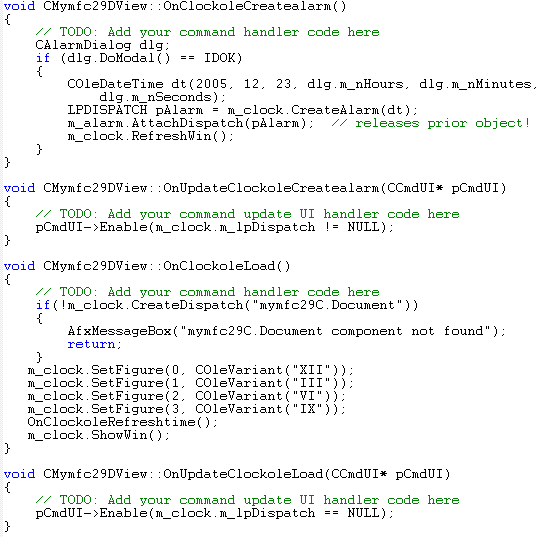
void CMymfc29DView::OnClockoleLoad()
{
// TODO: Add your command handler code here
if(!m_clock.CreateDispatch("mymfc29C.Document"))
{
AfxMessageBox("mymfc29C.Document component not found");
return;
}
m_clock.SetFigure(0, COleVariant("XII"));
m_clock.SetFigure(1, COleVariant("III"));
m_clock.SetFigure(2, COleVariant("VI"));
m_clock.SetFigure(3, COleVariant("IX"));
OnClockoleRefreshtime();
m_clock.ShowWin();
}
void CMymfc29DView::OnUpdateClockoleLoad(CCmdUI* pCmdUI)
{
// TODO: Add your command update UI handler code here
pCmdUI->Enable(m_clock.m_lpDispatch == NULL);
}
Listing 8.
void CMymfc29DView::OnClockoleRefreshtime()
{
// TODO: Add your command handler code here
COleDateTime now = COleDateTime::GetCurrentTime();
m_clock.SetTime(now);
m_clock.RefreshWin();
}
void CMymfc29DView::OnUpdateClockoleRefreshtime(CCmdUI* pCmdUI)
{
// TODO: Add your command update UI handler code here
pCmdUI->Enable(m_clock.m_lpDispatch != NULL);
}
void CMymfc29DView::OnClockoleUnload()
{
// TODO: Add your command handler code here
m_clock.ReleaseDispatch();
}
void CMymfc29DView::OnUpdateClockoleUnload(CCmdUI* pCmdUI)
{
// TODO: Add your command update UI handler code here
pCmdUI->Enable(m_clock.m_lpDispatch != NULL);
}

Listing 9.
void CMymfc29DView::OnDlloleGetdata()
{
// TODO: Add your command handler code here
m_auto.DisplayDialog();
COleVariant vaData = m_auto.GetTextData();
ASSERT(vaData.vt == VT_BSTR);
CString strTextData = vaData.bstrVal;
long lData = m_auto.GetLongData();
TRACE("CMymfc29DView::OnDlloleGetdata -- long = %ld, text = %s\n", lData, strTextData);
}
void CMymfc29DView::OnUpdateDlloleGetdata(CCmdUI* pCmdUI)
{
// TODO: Add your command update UI handler code here
pCmdUI->Enable(m_auto.m_lpDispatch != NULL);
}
|
Listing 10. |

void CMymfc29DView::OnDlloleLoad()
{
// TODO: Add your command handler code here
if(!m_auto.CreateDispatch("mymfc29B.Auto"))
{
AfxMessageBox("mymfc29B.Auto component not found");
return;
}
else
{
AfxMessageBox("mymfc29B.Auto found lor!!!");
m_auto.SetTextData(COleVariant("test string")); // testing
m_auto.SetLongData(88); // testing
// verify the primary dispatch interface must match with the Mymfc29B.odl
// You should check your IID_IMymfc29BAuto dispinterface in your
// Mymfc29B.odl file in MYMFC29B project...
// {7A97BA38-BF4A-4586-93C6-72B5EE7E0DC2}
static const IID IID_IMymfc29BAuto =
{ 0x7a97ba38, 0xbf4a, 0x4586, { 0x93, 0xc6, 0x72, 0xb5, 0xee, 0x7e, 0xd, 0xc2 } };
LPDISPATCH p;
HRESULT hr = m_auto.m_lpDispatch->QueryInterface(IID_IMymfc29BAuto, (void**) &p);
TRACE("OnDlloleLoad -- QueryInterface result = %x\n", hr);
p->Release();
}
}
void CMymfc29DView::OnUpdateDlloleLoad(CCmdUI* pCmdUI)
{
// TODO: Add your command update UI handler code here
pCmdUI->Enable(m_auto.m_lpDispatch == NULL);
}
void CMymfc29DView::OnDlloleUnload()
{
// TODO: Add your command handler code here
m_auto.ReleaseDispatch();
}

Listing 11.
void CMymfc29DView::OnUpdateDlloleUnload(CCmdUI* pCmdUI)
{
// TODO: Add your command update UI handler code here
pCmdUI->Enable(m_auto.m_lpDispatch != NULL);
}

Listing 12.
------------------------Warning----------------------------
// The following code seems not working for Excel 10/11 Office 2000/2003
// because of the obsolete classes. At least two functions will generate error,
// m_app.GetWorkbooks() and m_workbooks.Add()...
// It is for Excel8.olb/Office 97...and the menu item
// for the Excel Comp Execute also has been omitted for this example...
// You have to dig the Microsoft Office documentation...hohohohoho...:-)
/*
LPDISPATCH pRange, pWorkbooks;
CWnd* pWnd = CWnd::FindWindow("XLMAIN", NULL);
if (pWnd != NULL) {
TRACE("Excel window found\n");
pWnd->ShowWindow(SW_SHOWNORMAL);
pWnd->UpdateWindow();
pWnd->BringWindowToTop();
}
m_app.SetSheetsInNewWorkbook(1);
VERIFY(pWorkbooks = m_app.GetWorkbooks());
m_workbooks.AttachDispatch(pWorkbooks);
LPDISPATCH pWorkbook = NULL;
if (m_workbooks.GetCount() == 0) {
// Add returns a Workbook pointer, but we
// don't have a Workbook class
pWorkbook = m_workbooks.Add(); // Save the pointer for later release
}
LPDISPATCH pWorksheets = m_app.GetWorksheets();
ASSERT(pWorksheets != NULL);
m_worksheets.AttachDispatch(pWorksheets);
LPDISPATCH pWorksheet = m_worksheets.GetItem(COleVariant((short) 1));
m_worksheet.AttachDispatch(pWorksheet);
m_worksheet.Select();
VERIFY(pRange = m_worksheet.GetRange(COleVariant("A1")));
m_range[0].AttachDispatch(pRange);
VERIFY(pRange = m_worksheet.GetRange(COleVariant("A2")));
m_range[1].AttachDispatch(pRange);
VERIFY(pRange = m_worksheet.GetRange(COleVariant("A3")));
m_range[2].AttachDispatch(pRange);
VERIFY(pRange = m_worksheet.GetRange(COleVariant("A3"), COleVariant("C5")));
m_range[3].AttachDispatch(pRange);
VERIFY(pRange = m_worksheet.GetRange(COleVariant("A6")));
m_range[4].AttachDispatch(pRange);
m_range[4].SetValue(COleVariant(COleDateTime(2005, 4, 24, 15, 47, 8)));
// retrieve the stored date and print it as a string
COleVariant vaTimeDate = m_range[4].GetValue();
TRACE("returned date type = %d\n", vaTimeDate.vt);
COleVariant vaTemp;
vaTemp.ChangeType(VT_BSTR, &vaTimeDate);
CString str = vaTemp.bstrVal;
TRACE("date = %s\n", (const char*) str);
m_range[0].SetValue(COleVariant("test string"));
COleVariant vaResult0 = m_range[0].GetValue();
if (vaResult0.vt == VT_BSTR) {
CString str = vaResult0.bstrVal;
TRACE("vaResult0 = %s\n", (const char*) str);
}
m_range[1].SetValue(COleVariant(3.14159));
COleVariant vaResult1 = m_range[1].GetValue();
if (vaResult1.vt == VT_R8) {
TRACE("vaResult1 = %f\n", vaResult1.dblVal);
}
m_range[2].SetFormula(COleVariant("=$A2*2.0"));
COleVariant vaResult2 = m_range[2].GetValue();
if (vaResult2.vt == VT_R8) {
TRACE("vaResult2 = %f\n", vaResult2.dblVal);
}
COleVariant vaResult2a = m_range[2].GetFormula();
if (vaResult2a.vt == VT_BSTR) {
CString str = vaResult2a.bstrVal;
TRACE("vaResult2a = %s\n", (const char*) str);
}
m_range[3].FillRight();
m_range[3].FillDown();
// cleanup
if (pWorkbook != NULL) {
pWorkbook->Release();
}
}
void CMymfc29DView::OnUpdateExceloleExecute(CCmdUI* pCmdUI)
{
// TODO: Add your command update UI handler code here
pCmdUI->Enable(m_app.m_lpDispatch != NULL);
}*/
---------------End of Warning----------------
// The following code should be ok but do nothing, just load the Excel OLE
void CMymfc29DView::OnExceloleLoad()
{
// TODO: Add your command handler code here
// if Excel is already running, attach to it, otherwise start it
LPDISPATCH pDisp;
LPUNKNOWN pUnk;
CLSID clsid;
TRACE("Entering CMymfc29DView::OnExcelLoad\n");
BeginWaitCursor();
// Excel for Office 2003. Adjust accordingly for your Excel version
::CLSIDFromProgID(L"Excel.Application.11", &clsid); // from registry
if(::GetActiveObject(clsid, NULL, &pUnk) == S_OK)
{
VERIFY(pUnk->QueryInterface(IID_IDispatch, (void**) &pDisp) == S_OK);
m_app.AttachDispatch(pDisp);
pUnk->Release();
TRACE(" attach complete\n");
// you can use SPY++/Windows Task Manager to verify
// your Excel process is attached...
}
else
{
// Excel for Office 2003. Adjust accordingly for your Excel version
if(!m_app.CreateDispatch("Excel.Application.11"))
{
AfxMessageBox("Excel program not found");
}
TRACE(" create complete\n");
}
EndWaitCursor();
}
void CMymfc29DView::OnUpdateExceloleLoad(CCmdUI* pCmdUI)
{
// TODO: Add your command update UI handler code here
pCmdUI->Enable(m_app.m_lpDispatch == NULL);
}

Listing 13.
Further reading and digging:
-
Win32 process, thread and synchronization story can be found starting from Module R.
-
MSDN What's New (MFC Feature Pack) - feature pack.
-
DCOM at MSDN.
-
COM+ at MSDN.
-
COM at MSDN.
-
Unicode and Multi-byte character set: Story and program examples.